> For the complete documentation index, see [llms.txt](https://docs.simplespa.net/simplespa-documentation/llms.txt). Markdown versions of documentation pages are available by appending `.md` to page URLs; this page is available as [Markdown](https://docs.simplespa.net/simplespa-documentation/daily-operations/pos/processing-credit-cards.md).
# Processing Credit Cards
Take card payments in the SimpleSpa POS with an integrated terminal or with Stripe.
This page explains the two ways to take credit card payments in SimpleSpa: an integrated POS terminal or Stripe.
## Integrated POS terminal
SimpleSpa has partnered with leading credit card processors\* in the US to offer you competitive rates for processing credit cards directly in our checkout and POS. SimpleSpa is certified to work with a wide range of POS terminals, so your business can accept the new EMV standard. [Contact us](https://www.simplespa.com/contact) to get a quote from our sales team for an integrated solution.
When you press the  button, the payment is sent to your terminal automatically.
### Terminal manual sale override
**Dejavoo Spin:** To take a manual payment without recording it in SimpleSpa, follow these steps on your terminal:
1. Tap **TURN SPIN BYPASS ON**.
2. The terminal displays **CREDIT / SALE ... ENTER AMOUNT**.
3. Enter the dollar amount and press **OK**.
4. Insert the card.
**Clover:** On the Clover Terminal, Mini and Flex devices, you can run a manual transaction with the **Sale** app.
\* If you have connected your SimpleSpa account with Stripe, you can process credit card payments quickly and easily directly in SimpleSpa.
## Stripe
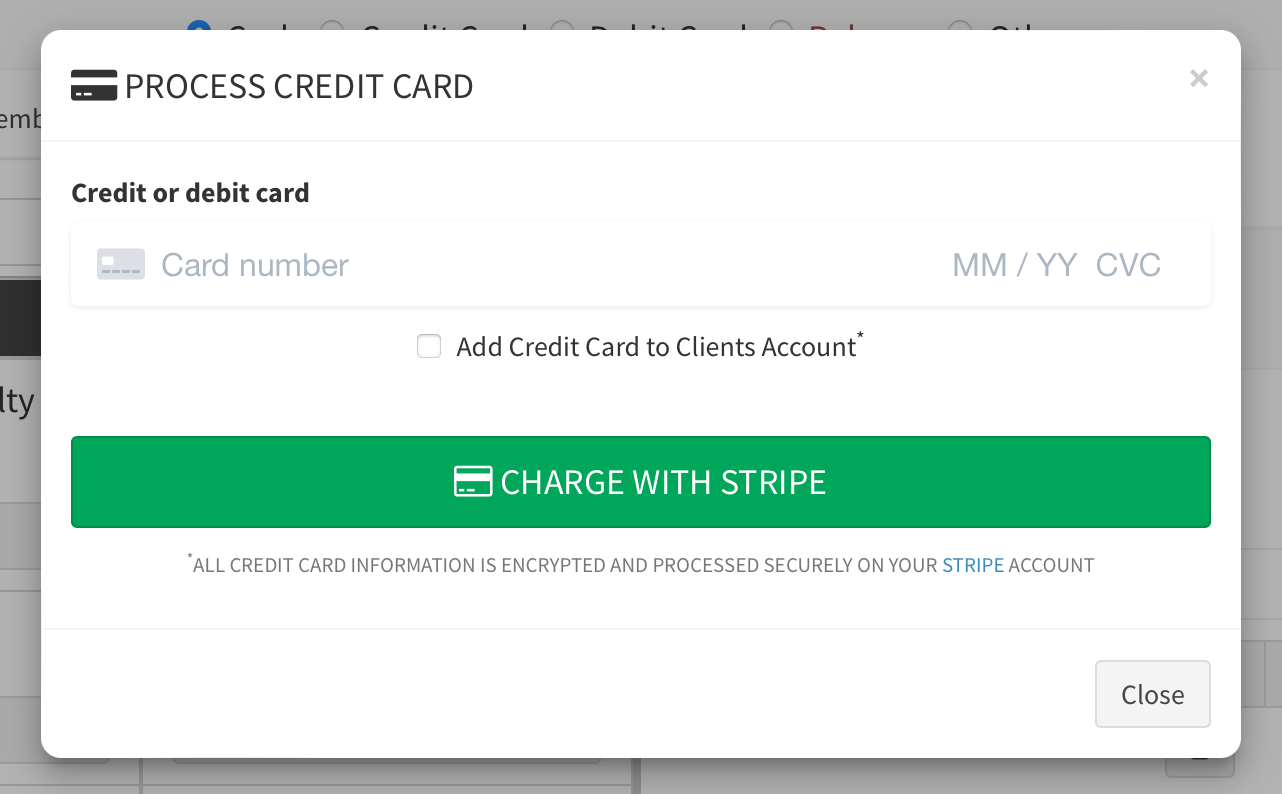
Once your Stripe account is connected, **Credit Card** is selected automatically as the payment method when you complete an appointment or make a sale in the POS.
1. Press the  button. A new window opens.
2. Enter the card information for the transaction.
When the transaction is complete, the receipt shows both the Stripe transaction number and the customer ID. Depending on your Stripe settings, Stripe may also send your client a receipt confirming the payment. Funds become available according to your Stripe account.
{% hint style="info" %}
To use Stripe directly with SimpleSpa, we charge a transaction fee of 0.10USD or local currency, depending on where your Stripe account was created and the business's physical presence.
{% endhint %}
Capturing a credit card via the Stripe integration
Using a card on file via the Stripe integration
## Related
* [Cards on File](/simplespa-documentation/daily-operations/pos/cards-on-file.md)
* [PCI Compliance](/simplespa-documentation/daily-operations/pos/pci-compliance.md)
* [POS Terminal](/simplespa-documentation/daily-operations/hardware/pos-terminal.md)